
1Panel Panel Deployment
This document provides a graphical tutorial for deploying New API using the 1Panel panel.
Prerequisites
| Item | Requirement |
|---|---|
| 1Panel Panel | Latest stable version |
| Recommended OS | Linux (Ubuntu/CentOS/Debian, etc.) |
| Server Configuration | At least 1 core and 2GB RAM |
Step 1: Install 1Panel Panel
Install 1Panel Panel
For information on 1Panel installation, deployment, and basic features, please refer to the 1Panel Official Documentation
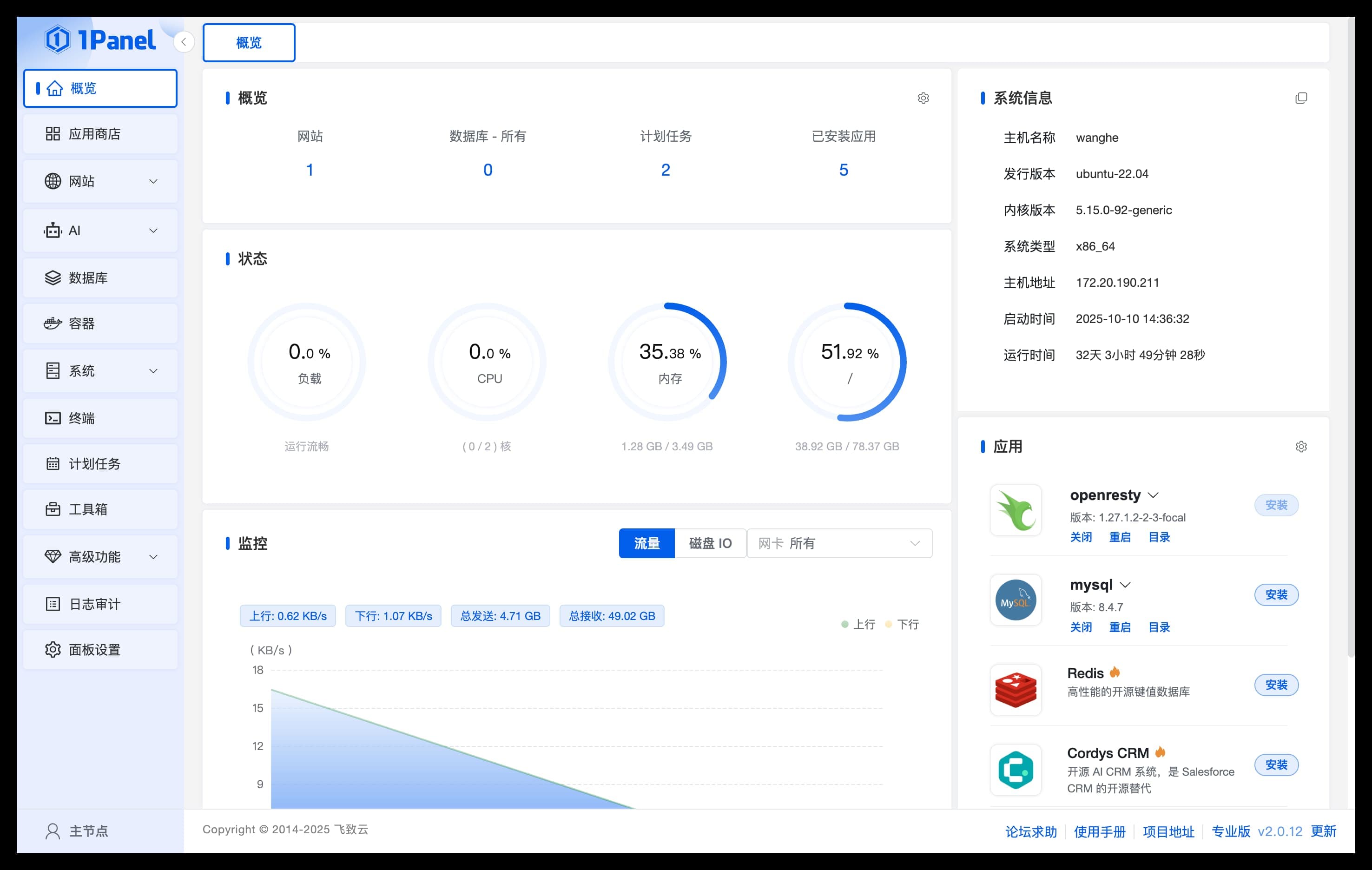
After completing the 1Panel installation and deployment, open your browser to the prompted URL to access the 1Panel panel.
Step 2: Install New API
Search for Applications
Search for Applications
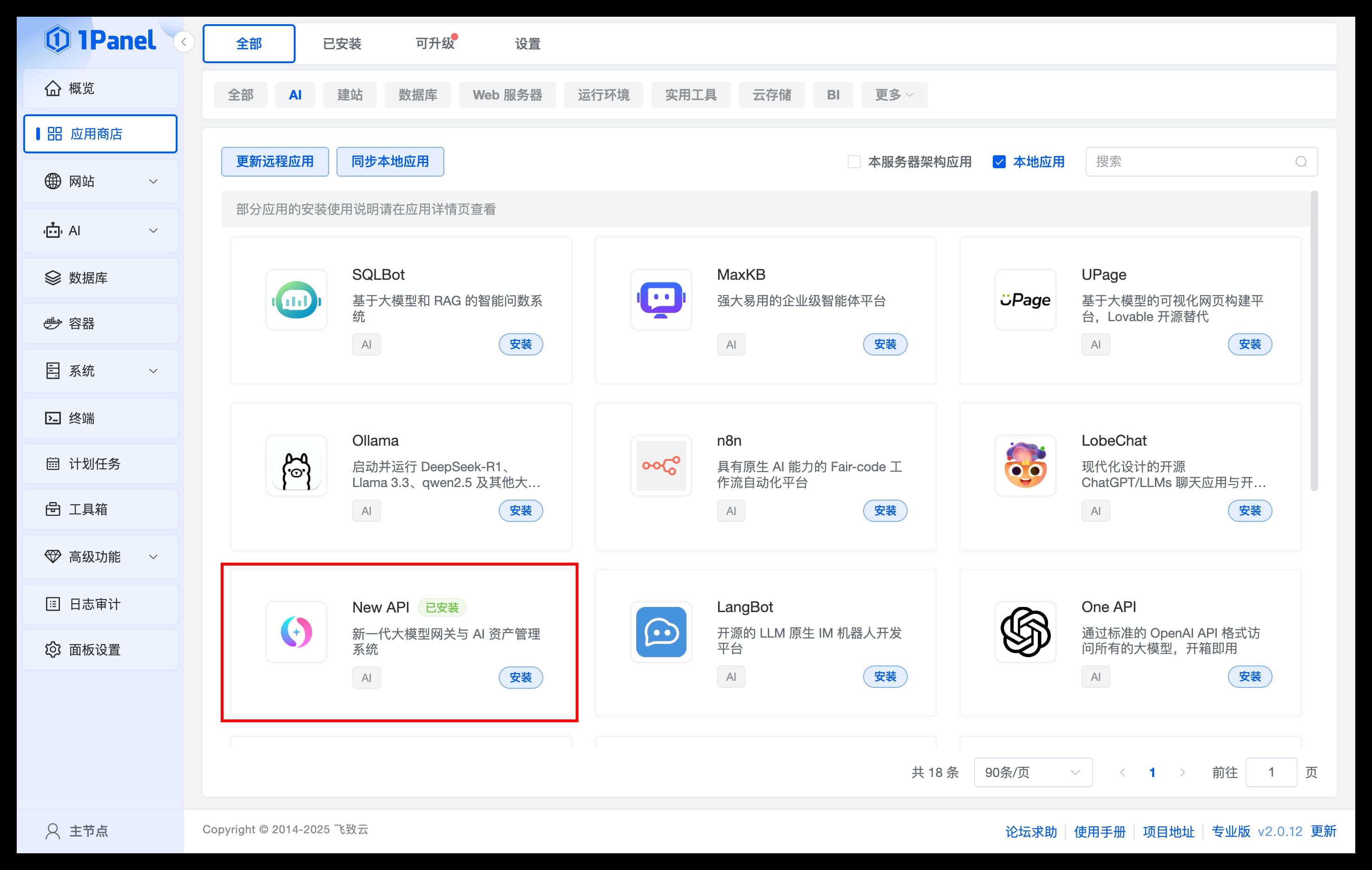
Go to the application list in the App Store, find the New API application under the [AI] category, and install it.
Configure Parameters
Install Application
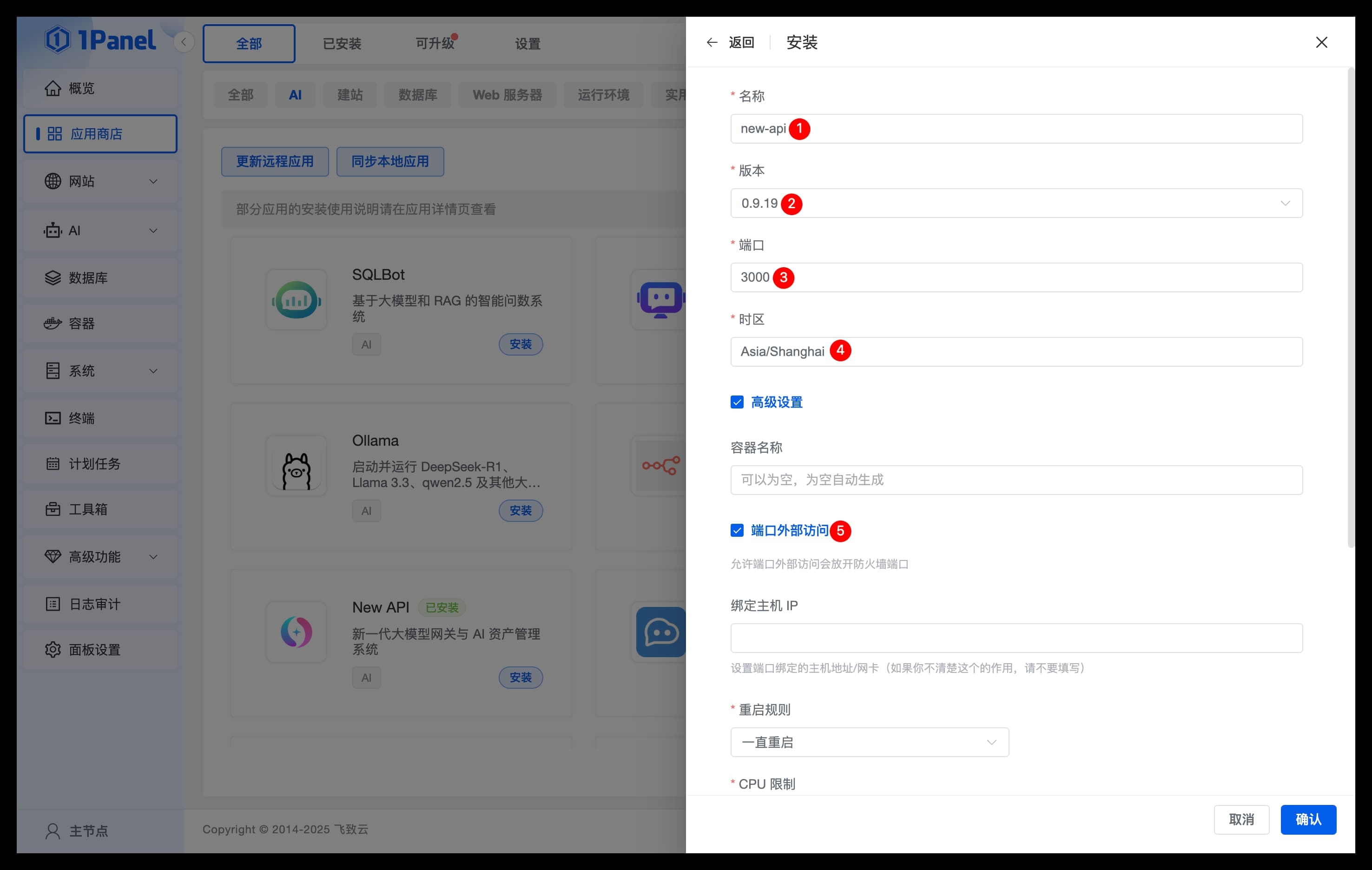
Configure New API application parameters on the installation page:
- Name: The name of the New API application to be created
- Version: Select the version of New API
- Port: The service port for the New API application
- Timezone: Enter the timezone where the server is located (default Asia/Shanghai)
- Advanced Settings: Be sure to check external port access
Confirm Installation
Confirm Installation
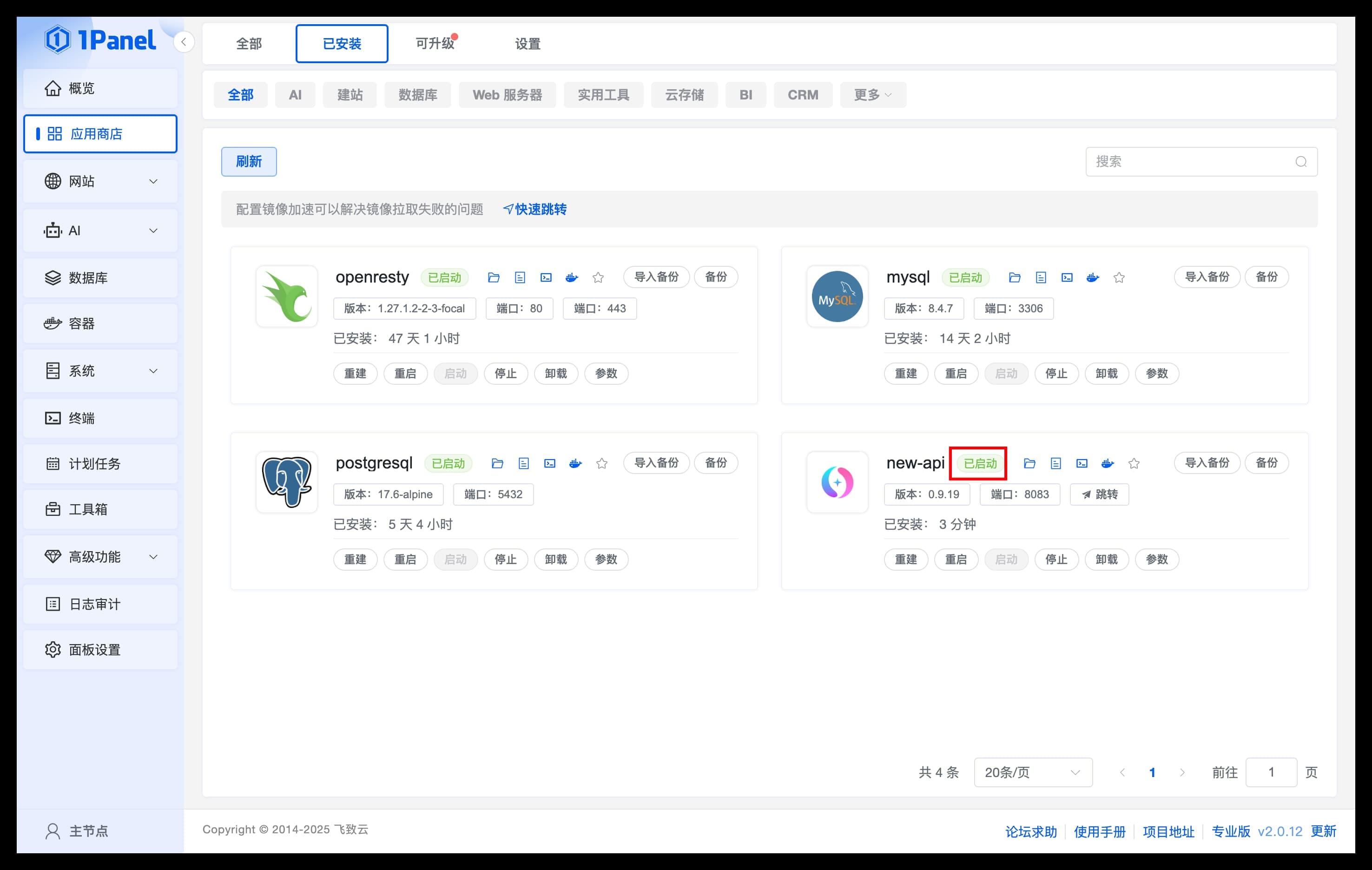
Click Confirm to start the installation. The page will automatically redirect to the installed applications list. Wait for the New API application status to change to Started.
Step 3: Configure Environment Variables (Important)
After installation, it is recommended to configure the following key environment variables:
Required Environment Variables
| Variable | Description | Required |
|---|---|---|
SESSION_SECRET | Session secret, must be consistent for multi-node deployment | Required |
CRYPTO_SECRET | Encryption secret, required when using Redis | Conditional |
Configuration Method
- In the 1Panel application list, click the Parameters button for the New API application
- Add in the environment variables section:
SESSION_SECRET=your_random_secret_keyCRYPTO_SECRET=your_crypto_secret_key(optional)
- Click Confirm to save the configuration
- Restart the application for the configuration to take effect
Generate Random Secrets
# Generate SESSION_SECRET
openssl rand -hex 16

# Or use Linux command
head -c 16 /dev/urandom | xxd -p
Step 4: Access New API
Access Application
- On the
Installedpage, clickJumpto enter the New API WebUI page - Before use, it is recommended to set the
Default Access Addresson thePanel Settingspage
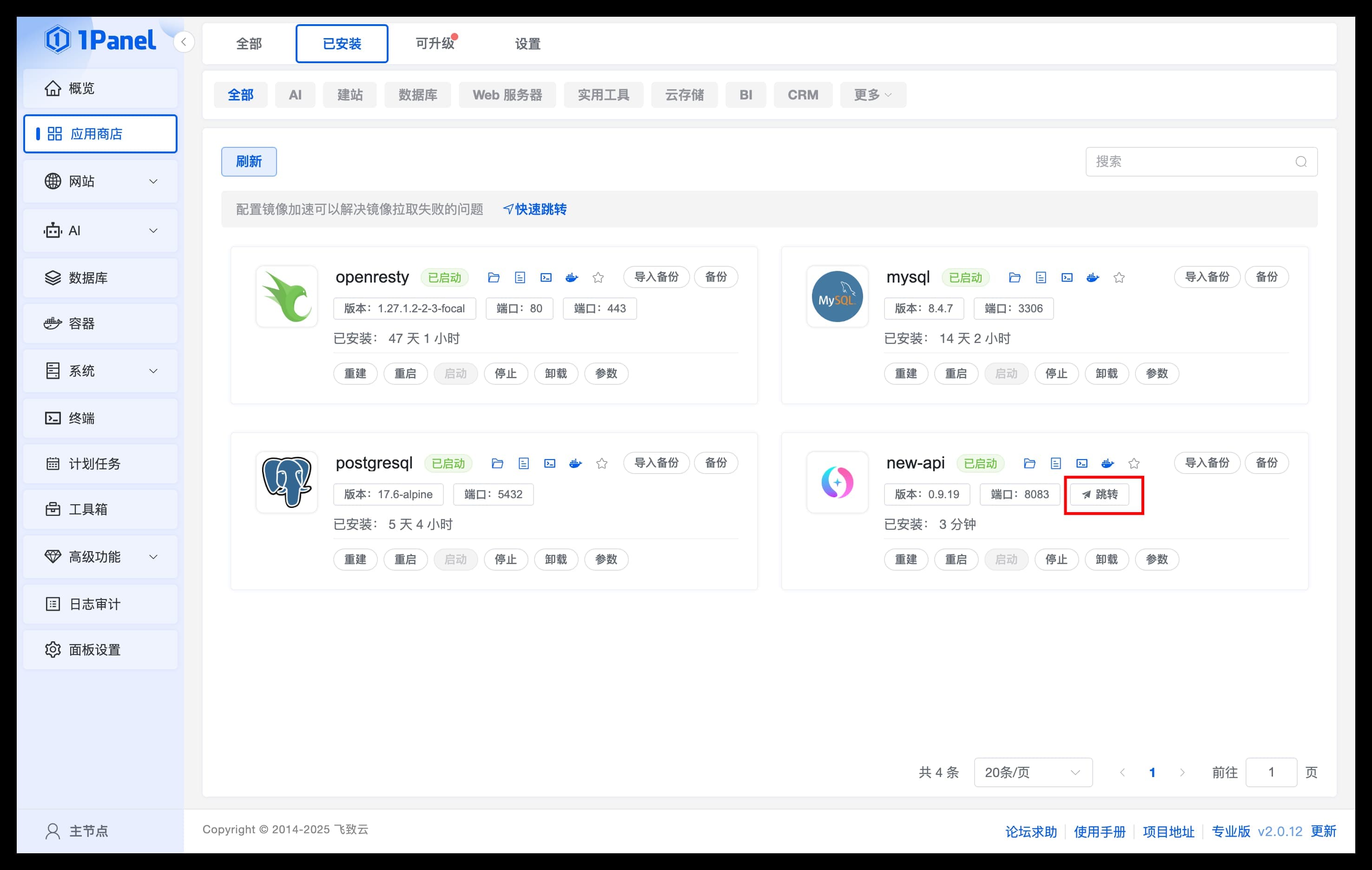
The first visit will automatically guide you to the initialization page. Follow the on-screen instructions to set up an administrator account and password.
Common Issues
Cannot access application interface
- Check if the application status is "Started"
- Confirm that the port is correctly mapped and open
- Check the server firewall and cloud server security group
Session invalid after login
Ensure the SESSION_SECRET environment variable is set and not empty.
How to update version
- Log in to 1Panel panel, go to App Store → Upgradable page
- Find the New API application, click the Upgrade button
- Select the target version, click Confirm
How to persist data
1Panel applications store data in Docker volumes by default. To customize storage location:
- In the application parameter settings, configure directory mapping
- Ensure the
/datadirectory is mapped to persistent storage
Related Links
How is this guide?
Last updated on